To change your profile picture on Instagram, open your profile, tap Edit profile, then tap Edit picture or avatar (or tap the picture itself) and choose New profile picture. Pick a photo, drag and pinch it inside the circle, and tap Done. On a computer, open your profile on instagram.com, click your current picture or Edit profile, then Upload photo. You can also do it in Accounts Center > Profiles > Profile picture (Instagram Help Center, as shown in Google results on 22 Nov 2026).
Below: the steps for each device, the size that stays sharp, how to remove or sync the picture, fixes for when it will not change, and one original data point. Instapect looked at the profile headers of 165 public accounts to see what sits next to the picture: 92.7% had a bio, but only 46.1% showed a category label.
Disclosure: Instapect publishes this guide and makes one of the tools mentioned below. Every step here happens inside Instagram and works without it. Instapect reads public profile data only; it does not change your profile or see private accounts.
TL;DR: changing your Instagram profile picture
| Question | Short answer | Source |
|---|---|---|
| Fastest way in the app | Profile > Edit profile > Edit picture or avatar > New profile picture > crop > Done | Instagram app, 22 Nov 2026 |
| On a computer | instagram.com > your profile > click the picture or Edit profile > Upload photo | Instagram web |
| Through Accounts Center | Menu > Accounts Center > Profiles > your Instagram profile > Profile picture | Instagram Help Center |
| Best size | Upload a square at least 320 x 320 pixels; Instagram shows it as a circle | Buffer, 2026 |
| Can I crop it on desktop? | Not precisely. Crop on your phone, or pre-crop a square before uploading | IONOS, Instagram web |
| How do I remove it? | Edit picture or avatar > Remove current picture (web: Remove current photo) | Instagram app and web |
| Will it change on Facebook too? | Only if you turned on profile picture sync in Accounts Center | Instagram Help Center |
| Does Instagram tell followers? | No notification is sent; people see the new picture next time it loads | Instagram app |
How to change your profile picture on iPhone and Android
The steps are the same on both phones. Button names below were current in November 2026; older app versions say Change profile photo instead of Edit picture or avatar.
- Open your profile. Tap your profile picture in the bottom right corner of the app.
- Tap Edit profile. It sits under your bio, next to Share profile.
- Tap Edit picture or avatar. You can also tap the small round picture at the top of the Edit profile screen.
- Choose where the photo comes from. Typical options are New profile picture (camera roll), Import from Facebook, Create avatar and Remove current picture. Tech is Easy's July 2026 walkthrough also shows importing from WhatsApp on Android.
- Crop it. Drag the photo and pinch with two fingers until the part you want sits inside the circle. Anything outside the circle will not show.
- Tap Done (iPhone) or the check mark (Android). The new picture appears on your profile within a few seconds.
- Check it from outside. Open your profile from a second account, or ask a friend, to confirm the new picture loads for other people and not only on your phone.
If you would rather watch it, the 50-second video embedded on this page shows the same steps on a phone.
How to change your Instagram profile picture on a computer
You can change it on instagram.com in any desktop browser. The Instagram app for Windows uses the same screens.
- Go to instagram.com and log in.
- Click Profile in the left menu.
- Click your current profile picture, or click Edit profile and then Change photo.
- Click Upload photo and pick an image from your computer. Remove current photo deletes the one you have now.
- The upload saves straight away. There is no crop screen like the one in the app, so Instagram centers the image and trims it to a circle for you.
Because desktop gives you little control over the crop, make the image square first in any photo editor, with the face or logo in the middle. Then the automatic trim has nothing important to cut.
How to change it through Accounts Center
Instagram's Help Center now sends people through Accounts Center, Meta's shared settings for Instagram and Facebook (Instagram Help Center, as indexed 22 Nov 2026):
- Tap your profile picture in the bottom right to go to your profile.
- Tap the Menu icon (three lines) at the top right.
- Tap Accounts Center, then Profiles.
- Tap your Instagram profile, then Profile picture.
- Upload a new picture, crop it, and save.
Accounts Center is also where you control sync. If you connect Facebook and Instagram there, you can choose to keep your name and profile picture the same on both apps (Instagram Help Center: Sync your profile information). With sync on, changing the picture on one app changes it on the other. Some accounts now see Meta Account settings instead of the Accounts Center name; the steps are the same.
What size should your Instagram profile picture be?
Upload a square image of at least 320 x 320 pixels. Instagram does not publish an official spec, so the numbers come from tool makers:
| Source | Recommended size | Note |
|---|---|---|
| Buffer image size guide, 2026 | 320 x 320 px | Shown as a circle |
| Canva Instagram sizes | 110 x 110 px minimum | Smallest size that still looks clean on a phone |
| Later, updated June 2025 | 110 x 110 px | Notes that larger files get compressed |
| IONOS | 200 x 200 px minimum | 110 px on phones, 180 px on desktop |
Uploading bigger is fine. A 1080 x 1080 square gives Instagram room to compress without visible blur. The public copy is much smaller: the profile picture Instapect stores from @zachking's public profile is 150 x 150 pixels. That is why a busy photo turns into a blur in comments and the feed, where the picture is smaller still. For every other Instagram size (posts, Reels, Stories), see the Instagram post size guide.
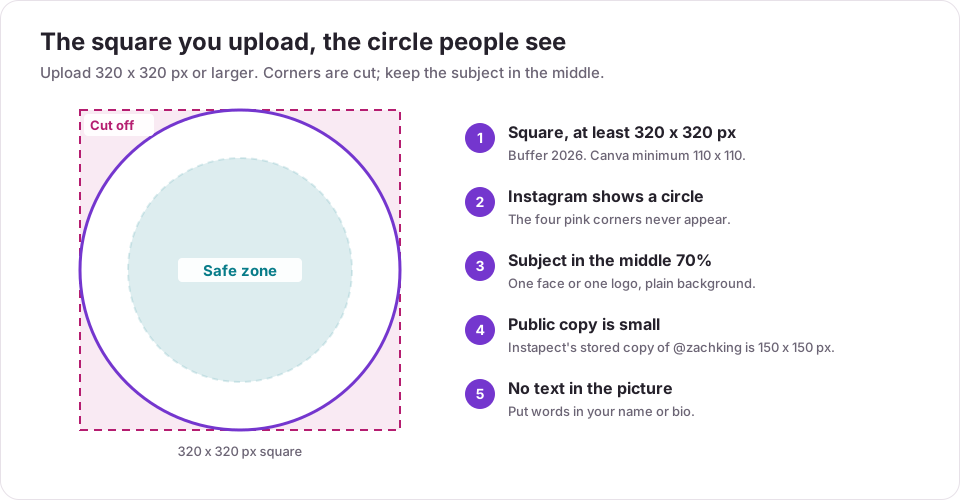
Two real examples from public Instapect reports:
- @nike uses a white logo centered on a plain black square. It reads at any size because the mark sits well inside the circle.
- @zachking uses a tight, centered photo of his face. One subject, close up, plain background.
How to remove your Instagram profile picture
- Open your profile and tap Edit profile.
- Tap Edit picture or avatar.
- Tap Remove current picture and confirm.
On instagram.com, click your picture and choose Remove current photo. Your profile then shows the grey default silhouette. If the picture is synced with Facebook, check Accounts Center afterwards, since removing it on one app can leave the old picture on the other.
Why can't I change my profile picture on Instagram?
When the picture will not save, or keeps showing the old one, work down this list:
| What you see | Likely cause | Fix |
|---|---|---|
| Upload spins or fails | Weak connection or old app version | Switch between Wi-Fi and mobile data, update Instagram, try again |
| "Couldn't refresh" or the old picture comes back | App cache or a sync conflict | Close and reopen the app, then check Accounts Center sync |
| Change works on your phone, others see the old one | Their app cached the old image | Wait an hour; caches refresh on their own |
| You can't crop it on desktop | instagram.com has no crop editor | Crop on your phone, or upload a pre-cropped square |
| The picture keeps reverting to your Facebook one | Profile picture sync is on | Turn sync off, or change it on the app you sync from |
| Upload rejected or picture removed later | It broke Instagram's Community Guidelines (nudity, someone else's image, impersonation) | Use a photo you own that follows the rules |
| Option is greyed out | A temporary restriction on the account | Check Settings > Account Status and wait out any limit |
| Blue plus sign posted a Story instead | On iPhone the plus on your profile picture opens the Story camera | Use Edit profile, not the plus sign |
If none of these work, log out and back in, then try the web version. A failure in both places usually points to the account rather than the phone, so report it through Settings > Help > Report a problem.
What else shows next to your profile picture: data from 165 public accounts
Your picture is the first thing people see on your profile, but it sits in a header with your name, bio, link, category label and, for some accounts, a verified badge. Instapect read those public header fields on the accounts it audited to see how often each one is filled in.
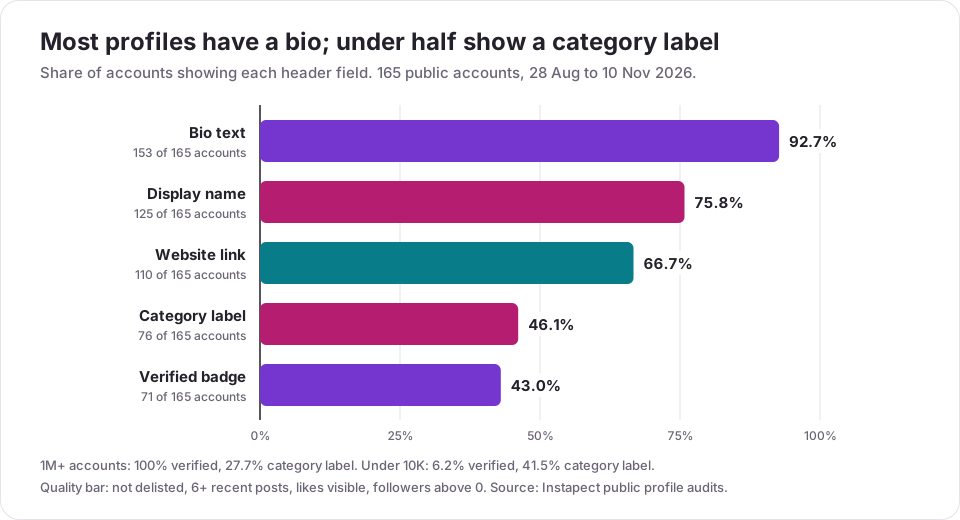
Method: 165 public Instagram accounts audited by Instapect between 28 Aug and 10 Nov 2026. Quality bar: not delisted, at least 6 recent posts, likes not hidden, followers above 0. Each field counts as present when the public profile shows it: a display name, any bio text, a website link, a category label (such as "Digital creator") and the blue verified badge.
| Followers | Accounts | Display name | Bio | Website link | Category label | Verified |
|---|---|---|---|---|---|---|
| Under 10K | 65 | 44 (67.7%) | 60 (92.3%) | 40 (61.5%) | 27 (41.5%) | 4 (6.2%) |
| 10K to 100K | 32 | 21 (65.6%) | 31 (96.9%) | 24 (75.0%) | 22 (68.8%) | 10 (31.3%) |
| 100K to 1M | 21 | 15 (71.4%) | 21 (100%) | 11 (52.4%) | 14 (66.7%) | 10 (47.6%) |
| 1M+ | 47 | 45 (95.7%) | 41 (87.2%) | 35 (74.5%) | 13 (27.7%) | 47 (100%) |
| All | 165 | 125 (75.8%) | 153 (92.7%) | 110 (66.7%) | 76 (46.1%) | 71 (43.0%) |
What the numbers show:
- Almost everyone writes a bio; a quarter skip the name. 92.7% had bio text, but 40 of 165 accounts left the display name blank, mostly under 100K followers. With no name, the bold line beside your picture just repeats your @handle. You can fill it in on the same Edit profile screen where you change the picture.
- The category label is the most skipped field. Under half (46.1%) showed one. On professional accounts it appears right under the name and tells a visitor what you do before they read the bio. The 1M+ group shows it least (27.7%), likely because household names can hide it without losing anyone.
- Every 1M+ account in the sample was verified. Below 10K, only 4 of 65 were. A badge is not something a new picture can fix; see how to get verified on Instagram for the requirements.
Limits: these are accounts Instapect users chose to audit, so they lean toward creators and brands. Small tiers have few accounts (21 in 100K to 1M). Instapect cannot judge the picture itself, only the text fields around it, and it does not measure whether a new picture changes follows or views.
To check every header field and the posts below it for any public account, run the handle through the Instapect profile analyzer. For writing the bio next to your new picture, see the Instagram bio guide.
Mistakes to avoid with your Instagram profile picture
| Mistake | Why it hurts | Do this instead |
|---|---|---|
| Logo or face near the edge of the image | The circle cuts the corners | Center it with clear space on all sides |
| Wide group shot or scenery | At 110 px nobody can tell who you are | One face, shoulders up, or one simple mark |
| Text inside the picture | Unreadable at small sizes | Put words in your name or bio |
| Uploading a tiny or screenshot image | Looks soft after compression | Start from a 320 x 320 or larger square |
| Changing it every week | Followers find you by the picture in comments and Stories | Pick one and keep it for months |
| Using someone else's photo | Can be removed or reported as impersonation | Use a photo you own |
| Forgetting Facebook sync | One change silently overwrites the other app | Check sync in Accounts Center first |
If you are refreshing the whole profile, change the picture and the handle together so people only have to learn the new look once. The username guide covers the limits on name changes.
Frequently asked questions
How do I change my profile picture on Instagram?
Go to your profile, tap Edit profile, tap Edit picture or avatar, choose New profile picture, crop the photo inside the circle and tap Done. On a computer, click your picture on instagram.com and choose Upload photo. The change saves straight away.
Why can't I change my profile picture on Instagram?
The usual causes are a weak connection, an outdated app, a sync setting that keeps copying your Facebook picture back, or a temporary account restriction. Update the app, try the web version, and check Accounts Center sync. If it fails everywhere, report a problem from Settings > Help.
My new profile picture is not showing for other people. What went wrong?
Usually nothing. Their app has cached your old picture and will refresh on its own, normally within an hour. If it still shows the old one a day later, check that sync with Facebook did not put the old image back.
What size should an Instagram profile picture be?
Use a square of at least 320 x 320 pixels (Buffer, 2026). Canva gives 110 x 110 as the minimum. Instagram shows the picture as a circle and serves a small public copy, so keep the subject centered and the background plain.
How do I change my Instagram profile picture without cropping?
You cannot avoid the circle, but you can stop Instagram cutting what matters. Put your photo on a square canvas with space around it in any editor, then upload that square. The whole subject then fits inside the circle.
Can I change my Instagram profile picture on a computer?
Yes. On instagram.com, click Profile, click your current picture or Edit profile, then Upload photo. Desktop has no crop editor, so upload an image that is already square.
Does Instagram notify followers when you change your profile picture?
No. Instagram does not send a notification. Followers see the new picture the next time your profile, posts, comments or Stories load for them.
How do I remove my profile picture on Instagram?
Tap Edit profile > Edit picture or avatar > Remove current picture. On the web, click your picture and choose Remove current photo. Your profile shows the default grey silhouette until you add a new one.
How do I use my Facebook profile picture on Instagram?
Tap Edit picture or avatar and choose Import from Facebook, which works when both accounts are in the same Accounts Center. To keep them matched from now on, turn on profile picture sync in Accounts Center > Profiles.
Can I use an avatar instead of a photo?
Yes. Edit picture or avatar includes Create avatar, which builds a cartoon version of you in Meta's avatar editor. Some people set both, so visitors can flip between photo and avatar on the profile.
How often can I change my profile picture on Instagram?
Instagram does not publish a limit for profile pictures, unlike display names, which Instagram limits to two changes in 14 days. Changing it often makes you harder to spot in comments and Stories, so most accounts keep one picture for months.
Can someone see my profile picture if my account is private?
Yes. A private account hides posts from people who do not follow you, but the name, bio and profile picture stay visible to everyone. See how to make your Instagram private for what else stays public.
Sources
- Instagram Help Center: Add or change your Instagram profile picture, summary as indexed by Google on 22 Nov 2026; steps cross-checked in the Tech is Easy walkthrough below.
- Instagram Help Center: Sync your profile information across your accounts, listed 22 Nov 2026.
- Buffer, Instagram image size guide (2026): profile photo 320 x 320. Retrieved 3 Nov 2026.
- Canva, Instagram sizes: profile photo minimum 110 x 110. Retrieved 3 Nov 2026.
- Later, Instagram profile picture (updated 24 Jun 2025), retrieved 22 Nov 2026.
- IONOS Digital Guide, Instagram profile picture, retrieved 22 Nov 2026.
- Tech is Easy, How To Change Instagram Profile Picture (YouTube, 4 Jul 2026, 0:50).
- Instapect public profile audits: 165 accounts, 28 Aug to 10 Nov 2026.
See your profile the way visitors do
A new picture is one part of the first impression. Run any public handle through the Instapect audit to see the header fields, recent posts, likes, comments and engagement rate in one report, then compare it with accounts in your niche.