To make your Instagram private, open your profile, tap the Menu (three lines) at the top right, tap Account privacy under Who can see your content, turn on Private account and tap Switch to private. It takes about 10 seconds. From then on, only followers you approve can see your posts, Reels and Stories. If the toggle is missing, you have a business or creator account, and those can't be private until you switch back to a personal account (Instagram Help Center, checked 15 Nov 2026).
Below: the steps for iPhone, Android and desktop, how to get a professional account private, exactly what strangers can still see (your photo, name and bio stay public), how to check it worked, and how to switch back. The original part is a look at what 165 public profiles audited by Instapect hand to anyone who opens them, so you know what going private actually hides.
Disclosure: Instapect publishes this guide and makes one of the tools mentioned below. Every step here happens in the Instagram app and works without it. Instapect reads public profiles only and cannot see private accounts.
TL;DR: making Instagram private in 2026
| What you want to do | What to tap | Rule or limit | Source |
|---|---|---|---|
| Make your account private (app) | Profile > Menu > Account privacy > Private account > Switch to private | Same path on iPhone and Android | Help Center, checked 15 Nov 2026 |
| Make it private on a computer | More > Settings > Account Privacy > Private account > Switch to private | instagram.com in a browser | Help Center, checked 15 Nov 2026 |
| Private with a business or creator account | Switch to a personal account first, then use the toggle | Professional accounts can't be private | Help Center, checked 15 Nov 2026 |
| Under 18 | Nothing to do | Private by default; under 16 needs a parent to go public | Help Center |
| What strangers still see | Profile photo, name, username and bio | Visible on and off Instagram even when private | Help Center comparison table, checked 15 Nov 2026 |
| Go public again | Same toggle, turned off | Pending follow requests are accepted automatically | Help Center |
| What a public profile shows today | Bio on 92.7%, a link on 66.7%, hashtags on 84.2% of 165 public accounts | Instapect, 28 Aug to 10 Nov 2026 |
- Current followers stay. Going private does not remove anyone. Remove or block the people you don't want before or after you switch.
- Your profile header stays public. Choose a profile photo, name and bio you are happy for strangers to read.
- Private hides you from discovery. Your posts stop appearing in search, Explore, hashtag and location pages, and search engine results.
Instagram private account at a glance
| Question | Answer |
|---|---|
| Where is the setting? | Menu > Account privacy (under Who can see your content) |
| Who can follow you once private? | Only people you approve |
| Does it remove followers? | No |
| Can business or creator accounts be private? | No, switch to personal first |
| Is it reversible? | Yes, any time, from the same toggle |
| Can a profile analyzer read it? | No. Public-data tools, Instapect included, see no posts on a private account |
How to make your Instagram private on iPhone and Android
The iPhone and Android apps use the same path (Instagram Help Center, checked 15 Nov 2026):
- Tap Profile or your profile picture in the bottom right to go to your profile.
- Tap Menu (three lines) in the top right.
- Below Who can see your content, tap Account privacy.
- Tap the toggle next to Private account.
- Tap Switch to private to confirm.
The toggle turns blue (on) and your profile now shows a lock to anyone who does not follow you. If Account privacy shows a note about professional accounts instead of a toggle, skip to the business and creator section below.
If you prefer to watch it, the video above (GUMY Art, April 2026, 1 minute 28 seconds) shows the same five taps.
How to make your Instagram private on a computer
On instagram.com in a desktop browser (Instagram Help Center, checked 15 Nov 2026):
- Click More in the bottom left, then click Settings.
- Click Account Privacy below Who can see your content.
- Click the toggle next to Private account.
- Click Switch to private to confirm.
The setting is tied to your account, not the device, so switching on a computer also makes the account private in the app.
How to make a business or creator account private
Instagram's rule is plain: "Professional accounts can't be set to private" (About professional accounts, checked 15 Nov 2026). You have two routes:
- You need privacy more than business tools: switch to a personal account, then turn on Private account. In the app, open Menu, go to your account type settings (labelled Account type and tools in current versions), choose to switch account type, and pick Switch to personal account. Labels move between app versions, so search "personal account" in the settings search bar if you can't see it. Our step-by-step guide to switching to a personal account covers iPad, desktop and what you lose.
- You need business tools more than privacy: stay professional and use the narrower controls in the next section instead (Close Friends, archiving, hiding like counts, restricting and blocking).
Know what you give up. Instagram lists the features that come with a professional account: the professional dashboard, Insights, ads, a Contact button, a category label and a secondary inbox (Instagram Help Center). Switching to personal removes access to those, so note any Insights numbers you want to keep first. Our guide to seeing Instagram Insights shows where they live.
Action: to see which type you have, open Menu. If you see Professional dashboard or business tools near the top, the account is professional.
Which privacy option fits you?
Going fully private is the biggest switch. Pick by what you are trying to stop:
- Strangers seeing everything you post → make the account private (steps above).
- Strangers seeing one or two old posts → open the post, tap the three dots and tap Archive. Only you can see archived posts, and you can restore them later.
- Some people seeing your Stories → share to Close Friends only, or hide your Story from specific accounts in your Story settings.
- People judging your like counts → hide them per post; see how to hide likes on Instagram.
- One person bothering you → Restrict or Block them from their profile's three-dot menu. A blocked person can't view your posts or find your account in search (Instagram Help Center).
- You run a business account → you can't go private, so combine archiving, Close Friends and blocking.
What changes when you make Instagram private?
Instagram publishes a side-by-side table. These are its rows, unchanged in substance (Differences between public and private accounts, checked 15 Nov 2026):
| Who can... | Public account | Private account |
|---|---|---|
| Follow you | Anyone on Instagram | Only people you approve |
| See your photos and videos on your profile or in feed | Anyone on Instagram | Your followers |
| See your posts in search, Explore, hashtag and location pages | Anyone on Instagram | No one |
| See your profile photo, name, username and bio | Anyone on or off Instagram | Anyone on or off Instagram |
| Find links to your posts in search engine results | Anyone off Instagram | No one |
| See the public accounts you follow and that follow you | Anyone on Instagram and Threads | Anyone on Instagram and Threads |
| See the private accounts you follow and that follow you | Anyone on Instagram | Your followers |
| Download your Reels | Anyone, unless you change settings | No one |
| Remix your videos | Anyone, unless you change settings | No one |
| Embed your posts off Instagram | Anyone, unless you change settings | No one |
Two rows surprise people. First, the profile header (photo, name, username, bio) stays visible to everyone, logged in or not. Second, the table says the public accounts in your follower and following lists can still be seen on Instagram and Threads. Private hides your content, not the fact that your account exists.
What 165 public profiles show to anyone
Going private only helps if you know what a public profile exposes. Instapect audits public profiles, so its database is a record of what anyone can read without following. I counted what was readable across 165 accounts.
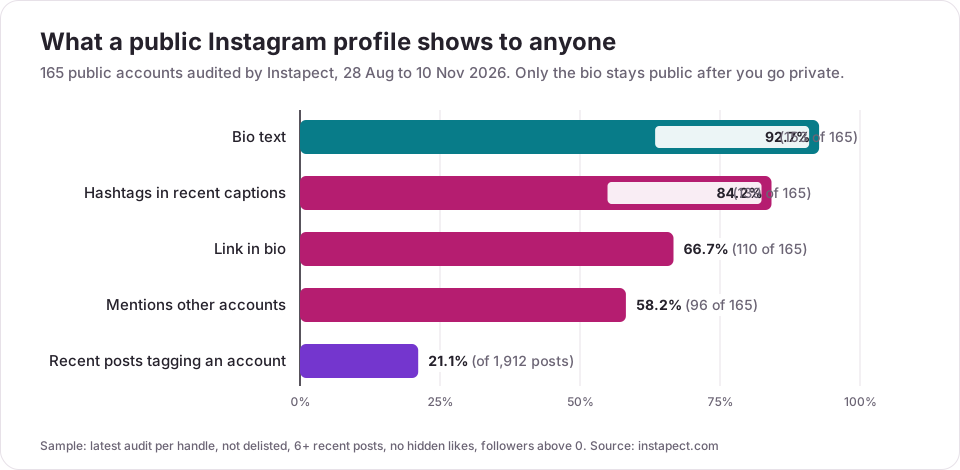
| Readable by anyone | All accounts (165) | Under 10K followers (65) | 10K to 100K (32) | 100K to 1M (21) | 1M+ (47) |
|---|---|---|---|---|---|
| Bio text | 92.7% | 92.3% | 96.9% | 100% | 87.2% |
| Link in bio | 66.7% | 61.5% | 75.0% | 52.4% | 74.5% |
| Hashtags in recent captions | 84.2% | 87.7% | 81.3% | 71.4% | 87.2% |
| Mentions of other accounts in captions | 58.2% | 36.9% | 50.0% | 52.4% | 95.7% |
| Share of recent posts that tag another account | 21.1% | 10.6% | 14.9% | 18.7% | 39.9% |
| Median share of recent posts on the busiest weekday | 33% | 33% | 27% | 36% | 33% |
What this means if you are weighing the switch:
- Your bio is the one thing privacy does not cover. Nine in ten public profiles have one, and it stays public after you go private. If your bio names your school, workplace or city, edit it; our Instagram bio guide has short formats that say less.
- Captions leak more than photos. 84% of accounts used hashtags and 58% named other accounts in recent captions. On a public account each hashtag puts the post on a hashtag page; on a private one, those pages show nothing from you.
- Small accounts tag fewer people, but still show a routine. Under 10K followers, only 10.6% of recent posts tagged another account, yet the median account still put a third of its recent posts on one weekday. Post timestamps are public, so a public account shows when you tend to post.
Method and limits. Sample: latest audit per handle in Instapect's audit cache, not delisted, at least six recent posts, no hidden like counts, followers above zero; 165 public accounts with 1,912 recent posts, audited 28 August to 10 November 2026, queried 15 November 2026. "Mentions" counts accounts whose recent captions name another handle; the weekday figure is each account's busiest weekday as a share of its sampled posts, then the median. These are accounts people chose to audit, weighted toward large brands and small creators, so read the shares as a description of this set, not of all of Instagram. The sample contains no private accounts because a private account has no public posts to read.
How to check your Instagram is private
Check from someone else's point of view, easiest first:
- Your own settings. Menu > Account privacy shows Private account switched on.
- A logged-out browser. Open a private or incognito window, go to instagram.com/yourusername without logging in. You should see your photo, name, bio and counts, plus "This account is private", and no posts.
- A friend who does not follow you. Their Follow button should change to Requested when tapped, and your grid should stay locked for them.
If check 2 still shows your posts, the switch did not save: reopen the app, confirm the toggle again and make sure you are on the account you meant (people with several accounts often flip the wrong one).
How to make your Instagram public again
Use the same toggle: Menu > Account privacy, turn off Private account and confirm. Instagram notes that "all pending follow requests will be automatically accepted when you go public" (Instagram Help Center), so clear any requests you don't want before you switch. If you are under 16, Instagram asks for a parent or guardian's permission to go public; at 16 to 17 you can switch yourself unless supervision is set up (Help Center).
Common mistakes when making Instagram private
| Mistake | What happens | Fix |
|---|---|---|
| Expecting it to remove followers | Everyone already following still sees everything | Review your followers list and remove or block before switching |
| Leaving personal details in the bio | Strangers and search engines still read it | Trim the bio to what you'd put on a public sign |
| Trying it on a business or creator account | No toggle, just a note about professional accounts | Switch to personal first, or use Archive and Close Friends |
| Switching the wrong account | Your main account stays public | Check the username at the top of your profile before you toggle |
| Accepting every follow request | Private in name, public in practice | Approve only people you recognise |
| Believing "private viewer" sites | They don't show private posts, and some ask for your login | Ignore them; a private account shows posts only to approved followers |
Maintenance: keep a private account private
- Review follow requests before approving: open them from your notifications.
- Check your followers list every few months and remove accounts you don't recognise.
- Re-read your bio after any edit, since it is always public.
- Re-check the toggle after reinstalling or switching account type, because a switch to a professional account makes the account public.
Frequently asked questions
How do I make my Instagram private?
Go to your profile, tap Menu, tap Account privacy under Who can see your content, turn on Private account and tap Switch to private. On a computer, click More > Settings > Account Privacy and use the same toggle.
Why can't I make my Instagram private?
You almost certainly have a business or creator account. Instagram says professional accounts can't be set to private. Switch to a personal account first, then the Private account toggle appears.
Can people still see my profile picture and bio if my Instagram is private?
Yes. Instagram's own comparison table says your profile photo, name, username and bio can be seen by anyone on or off Instagram, private or not. Only your posts, Reels and Stories are limited to followers.
Does making my Instagram private remove my followers?
No. Everyone who already follows you keeps seeing your posts. Remove followers or block people yourself if you want them gone.
How do I know if my Instagram is private?
Open Menu > Account privacy and check that Private account is on. To see it as others do, open your profile in a logged-out browser window: it should say the account is private and show no posts.
Can someone see my posts if my account is private and they don't follow me?
No. Only approved followers see your photos and videos. Sites and apps that claim to show private posts do not work as described, and some ask for your Instagram login, which you should never hand over.
Does a private account hide my hashtags?
Your hashtags stay in your captions for followers, but your posts no longer appear on hashtag or location pages, in search or in Explore. On those pages, a private account shows nothing.
I'm under 18 and can't switch my account to public. Why?
Accounts for people under 18 are private by default. If you are under 16, switching to public needs a parent or guardian's permission. At 16 or 17 you can switch yourself unless supervision is set up.
Can I make just one Instagram post private?
Not on a public account, but you can Archive it from the post's three-dot menu so only you see it. For Stories, share to Close Friends or hide the Story from specific people.
My account is private but a stranger still saw my Story. What happened?
They are probably already a follower, perhaps one you approved long ago or one who followed before you switched. Check your followers list, then remove or block them. Someone you blocked can't view your posts at all.
Can I make my Instagram private on a computer?
Yes. On instagram.com, click More in the bottom left, then Settings, then Account Privacy, and turn on Private account. The change applies to the app as well.
Make the switch, then check it
Turn on Private account now, then open your profile in a logged-out window to confirm the grid is locked. If you also want to see what your public profile showed before the switch, run any public handle through the Instagram profile analyzer: it reads only what anyone can see, which is exactly what going private hides. If you worry about what others can capture from your Stories even after going private, read whether Instagram notifies screenshots.