To turn off comments on an Instagram post or Reel you already shared, tap the three dots (Options) above the post and tap Turn off commenting. To do it before you share, tap Advanced settings on the caption screen and turn on Turn off commenting. Existing comments are hidden, not deleted, and they come back if you turn commenting on again (Instagram Help Center, checked 20 Nov 2026).
Below: the steps for posts and Reels, Stories, every post at once, and the softer options (followers only, Limits, Hidden Words, blocking one person). The original part is a count from 1,912 recent posts on 165 public profiles audited by Instapect, showing how often a large account's post sits at zero comments and what that tells you.
Disclosure: Instapect publishes this guide and makes one of the tools mentioned below. Every step here happens inside Instagram and works without it. Instapect reads public profile data only; it cannot change your comment settings or see hidden comments.
TL;DR: turning off comments on Instagram
| Question | Short answer | Source |
|---|---|---|
| One post or Reel, after sharing | Three dots above the post > Turn off commenting | Instagram Help Center, 20 Nov 2026 |
| One post or Reel, before sharing | Caption screen > Advanced settings > Turn off commenting | Instagram Help Center |
| What happens to old comments? | Hidden while comments are off; restored if you turn them back on | Instagram Help Center |
| Every post at once | Menu > Comments (under How others can interact with you): choose who can comment, or turn commenting off for everyone | Instagram Help Center |
| Stories | Story settings > Allow comments > Off, or per Story from Options | Instagram Help Center |
| Only some people | Allow comments from followers or people you follow, use Limit interactions, or block one person from commenting | Instagram Help Center |
| Do commenters get told? | No notice is described for turning comments off; hidden and limited comments are hidden without telling the sender | Instagram Help Center |
Every way to stop or reduce comments at a glance
Instagram gives you seven controls. They differ in scope (one post or the whole account) and in whether people can still type a comment.
| Control | Scope | Can people still comment? | Who sees their comment | Best for |
|---|---|---|---|---|
| Turn off commenting | One post or Reel | No | Nobody; old comments hidden | A single post that is attracting abuse or spam |
| Turn off commenting for everyone | Posts, Reels and Stories | No | Nobody | Accounts that never want comments |
| Allow comments from followers / people you follow | Whole account | Only the chosen group | Everyone | Public accounts that want quieter threads |
| Limit interactions | Whole account, up to 4 weeks at a time, can be extended | Yes | Only you, until you approve | A pile-on from strangers or new followers |
| Hidden Words and Hide unwanted comments | Whole account | Yes | Hidden from others | Slurs, spam, scams, specific words |
| Block comments from one person | Whole account | Yes | Only that person | One repeat commenter |
| Hide one comment by hand | One comment | Yes | You and the commenter | One-off clean-up |
Sources: Turn comments on or off, Hide comments, Limit interactions, Block someone from commenting, all checked 20 Nov 2026.
Action: if you want silence on one post, use Turn off commenting. If you want fewer bad comments but still want conversation, start with followers-only or Limits instead, because a post with comments off loses one of the main ways people respond to you.
How to turn off comments on an Instagram post you already shared
These steps work in the iPhone and Android apps for photo posts, carousels and Reels (Instagram Help Center, checked 20 Nov 2026):
- Open the post or Reel on your profile.
- Tap Options (three dots). On a feed post it sits above the post; on a Reel opened full screen, look for it beside the like and share buttons.
- Tap Turn off commenting.
The comment icon disappears for everyone else. Comments already on the post are hidden, not deleted. To undo it, repeat the steps and tap Turn on commenting; Instagram restores the earlier comments and people can comment again.
On a computer (instagram.com): open the post, click Options (three dots) next to it and select Turn off commenting.
Verify it worked: open the post from a second account or ask a friend. They should see no comment field and no comment count. You still see the post normally.
How to turn off comments before you post
Turning comments off before sharing means nobody gets a window to comment in the first minutes.
- Start a new post or Reel and get to the screen where you add a caption and location.
- Tap Advanced settings (on some versions it sits under More options).
- Turn on Turn off commenting.
- Go back and tap Share.
On instagram.com the same toggle is under Advanced settings on the caption step (Instagram Help Center, checked 20 Nov 2026).
How to turn off comments on all Instagram posts at once
There is no bulk button that flips old posts one by one, but there is an account-wide comment setting that covers new and existing content (Hide comments, checked 20 Nov 2026):
- Go to your profile and tap Menu (three lines) at the top right.
- Under How others can interact with you, tap Comments.
- Under Allow comments from, choose who can comment, or turn commenting off for everyone.
The choices for a public account are Everyone (the default), People you follow, Your followers, and People you follow and your followers. A private account gets Your followers or Followers you follow back. Instagram says you can also turn off commenting on your posts, Reels and Stories for everyone from this screen.
On a computer: More (bottom left) > Settings > Comments under How others can interact with you.
How to turn off comments on an Instagram Story
Stories have their own switch, separate from posts (Change audience settings or turn off comments on Instagram stories, checked 20 Nov 2026).
All your Stories:
- Tap Add (+), then Story.
- Tap Settings (gear) at the top right.
- Tap Story.
- Under Commenting, tap Allow comments and choose Off.
One Story, before posting: while editing the Story, tap Options (three dots) at the top right and tap Turn off commenting.
One Story, after posting: open your Story, tap Options at the bottom right and tap Turn off commenting.
Story comments are different from Story replies, which arrive as DMs. Turning off Story comments does not stop people replying by message; for that you change who can reply to your Stories in the same Story settings.
How to limit comments instead of turning them off
Most accounts want fewer bad comments, not zero comments. These four controls keep the conversation open.
Limit interactions. Menu > Limit interactions (under How others can interact with you) > pick What will be limited and Who will be limited (Everyone but your Close Friends, Recent followers, Accounts that don't follow you) > set a reminder > Turn on. Comments from limited accounts are hidden unless you approve them, and they stay hidden after you turn the tool off. It runs for up to four weeks at a time and can be extended (Limit interactions, checked 20 Nov 2026).
Hide unwanted comments and Hidden Words. Menu > Comments > Hide unwanted comments and pick None, Some or More. Add your own list under Hidden Words > Manage custom words and phrases, separating entries with commas. Hide unwanted comments is on by default (Hide comments).
Block one person from commenting. Menu > Comments > next to Block comments from, tap People, find the account and tap Block. They can still see your posts, and their new comments are visible only to them. Old comments stay up until you delete them (Block someone from commenting).
Hide or delete single comments. In the app, tap Hide under a comment on your own post. Only you and the commenter can still see it, and the commenter is not told (Hide comments). To handle comments you want to answer rather than remove, see how to reply to comments on Instagram.
How often do public accounts turn comments off? What 165 profiles show
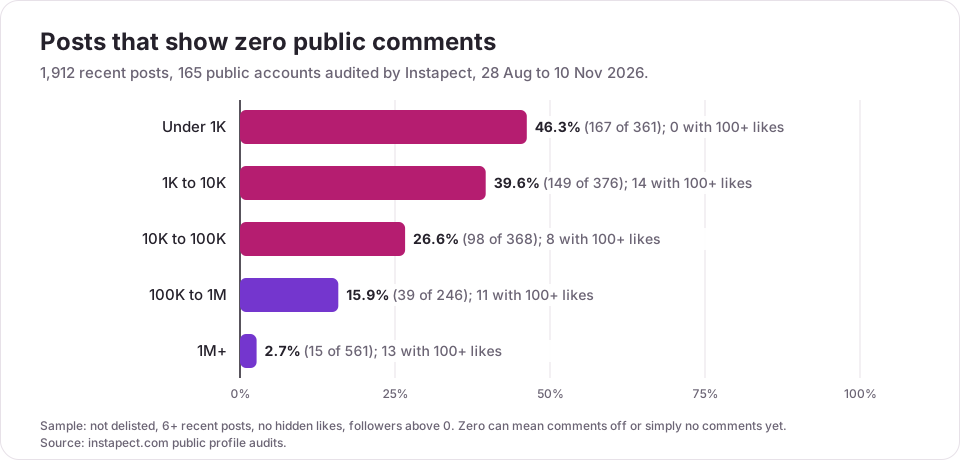
Instagram does not publish how many people switch comments off. A public profile does show one clue: a post with a large like count and a comment count of zero. We counted those posts in Instapect's audit data.
Method. 165 public Instagram accounts audited by Instapect between 28 August and 10 November 2026, with their 1,912 most recent posts. Quality filter: report not delisted, at least 6 recent posts, no hidden like counts, followers above zero. We counted posts that showed zero public comments, and the subset of those with 100 or more likes, where a zero is unlikely to be chance.
| Follower tier | Accounts | Posts | Posts with 0 comments | Share | 0 comments and 100+ likes | Median comments per 100 likes |
|---|---|---|---|---|---|---|
| Under 1K | 32 | 361 | 167 | 46.3% | 0 | 2.44 |
| 1K to 10K | 33 | 376 | 149 | 39.6% | 14 | 1.50 |
| 10K to 100K | 32 | 368 | 98 | 26.6% | 8 | 2.47 |
| 100K to 1M | 21 | 246 | 39 | 15.9% | 11 | 2.59 |
| 1M+ | 47 | 561 | 15 | 2.7% | 13 | 1.08 |
| All | 165 | 1,912 | 468 | 24.5% | 46 |
What the numbers say:
- For small accounts, zero comments is normal. Nearly half of posts under 1K followers had no comments, and none of them had 100+ likes. Those are quiet posts, not switched-off ones.
- At scale, zero comments is almost always a choice. Only 2.7% of posts at 1M+ followers showed zero comments, and 13 of those 15 had 100+ likes. With a median of about 1 comment per 100 likes in that tier, a post with thousands of likes and no comments points to comments being off.
- One account did it on every post. All 12 recent posts on @taylorswift's public report showed zero comments, with up to 7.0 million likes on a single post. That is what a comments-off policy looks like from outside.
- Most accounts that do it, do it selectively. 17 accounts had at least one zero-comment post with 100+ likes, and only 4 had a zero-comment post above 1,000 likes. Outside the one all-off account, these were scattered posts, which fits the "turn it off for this one post" pattern.
Limitations. A zero can also come from a brand-new post or an audience that simply did not comment, so these counts estimate an upper bound for small accounts and a fair signal only for large ones. The accounts were chosen by the people who ran audits, not sampled at random, and the 1M+ tier leans toward celebrities and media brands. Hidden comments still count toward a post's total, so hiding does not produce a zero (Hide comments).
What this means for your metrics. Comments are part of engagement rate (likes plus comments, divided by followers). Turning them off removes that part, so your rate will drop a little even if likes stay the same. If you compare accounts in the engagement rate calculator, check whether a low comment count is a setting before reading it as a weak audience.
Should you turn off comments? A quick decision guide
| Your situation | Use this |
|---|---|
| One post is getting abuse, spam or a pile-on | Turn off commenting on that post |
| A sudden wave from strangers or new followers | Limit interactions for 1 to 4 weeks |
| Spam bots and scam links under every post | Hide unwanted comments (More) plus Hidden Words |
| One person keeps coming back | Block comments from that person, or block them |
| You never want public comments | Allow comments from: off for everyone |
| You want comments only from people you know | Allow comments from your followers, or set the account to private (how to make Instagram private) |
| You want less pressure about numbers, not fewer comments | Hide like counts instead |
Mistakes to avoid when turning off comments
- Deleting comments when you only meant to hide them. Turning off commenting hides old comments and restores them later; deleting is permanent. Hide first if you might want them back.
- Turning comments off on posts that sell or ask a question. A giveaway, a launch or a "comment below" call to action needs a comment box. Use Limits or Hidden Words there instead.
- Forgetting that Story replies are separate. Story comments off does not stop DM replies to your Story.
- Leaving Limits on with no end date in mind. Comments from limited accounts stay hidden even after you turn Limits off, so check the hidden queue before you assume nobody commented.
- Reading a zero as a weak audience. On another account, a large post with no comments is usually a setting. Look at likes and views before judging.
Frequently asked questions
How do I turn off comments on Instagram?
Open the post, tap the three dots (Options) and tap Turn off commenting. Before sharing, use Advanced settings on the caption screen. For your whole account, go to Menu > Comments and change Allow comments from.
Can I turn off comments on Instagram Reels?
Yes. A Reel works like any post: tap the three dots on your Reel and tap Turn off commenting, or turn it off under Advanced settings before you share. The account-wide comment setting also covers Reels.
Does turning off comments delete existing comments?
No. Instagram hides the existing comments while commenting is off. If you turn commenting back on, the earlier comments are restored (Instagram Help Center).
Can I turn off comments on all my Instagram posts at once?
Yes, through the account setting: Menu > Comments under How others can interact with you. You can restrict comments to followers, people you follow, both, or turn commenting off for everyone on posts, Reels and Stories.
Can I turn off comments on someone else's post?
No. Only the account that shared a post controls its comments. You can stop seeing comments you dislike by muting or blocking the commenter, but you cannot close another person's comment section.
Do people know when I turn off comments?
Instagram does not describe any notification for it. People just see a post with no comment field. Hidden comments and comments from limited accounts are hidden without telling the sender.
I can't find "Turn off commenting." What's wrong?
Update the Instagram app first; menu names move between versions. Make sure you are on your own post and logged into the account that shared it. On the caption screen, look under Advanced settings or More options. If the option is still missing, try instagram.com, where it sits under Options next to the post.
I turned off comments but people are still commenting. Why?
Check where. If it is your Story, Story replies are messages, not comments, and have their own setting. If it is a post, you may have changed the account setting to followers-only rather than off, so followers can still comment.
Why does my post still show a comment count after I hid comments?
Hidden comments still count toward the total. Only turning off commenting removes the comment section; hiding, Hidden Words and Limits keep the count (Hide comments).
Does turning off comments hurt reach on Instagram?
Instagram does not say that it does. Comments are one of the signals people use to respond to a post, so a post with comments off loses that route, and your engagement rate will be lower because comments are part of the formula. See how the Instagram algorithm ranks posts for the signals Instagram names.
How do I turn comments back on?
Open the post, tap the three dots and tap Turn on commenting. For the account setting, go back to Menu > Comments and set Allow comments from to Everyone.
Sources
- Instagram Help Center: Turn comments on or off for Instagram posts, checked 20 Nov 2026.
- Instagram Help Center: Change audience settings or turn off comments on Instagram stories, checked 20 Nov 2026.
- Instagram Help Center: Hide comments or message requests you don't want to see, checked 20 Nov 2026.
- Instagram Help Center: Temporarily limit people from interacting with you, checked 20 Nov 2026.
- Instagram Help Center: Block someone from commenting on your photos and videos, checked 20 Nov 2026.
- Instapect public profile audits: 165 accounts, 1,912 posts, 28 Aug to 10 Nov 2026.
Check what a profile's comments really say
Comment counts are easy to misread when settings hide them. Run any public handle through the Instapect audit to see likes, comments and the comment-to-like ratio post by post, then read the zeros in context.