To switch to a personal account on Instagram, go to your profile, tap Menu (three lines) at the top right, then Account type and tools > Account type > Switch account type > Switch to personal account, and confirm with Switch to personal. It takes six taps and works the same for business and creator accounts. You lose access to Meta Business Suite and Meta Ads Manager, but a public account keeps its dashboard and insights (Instagram Help Center, checked 20 Nov 2026).
Below: the exact steps for iPhone, Android, iPad and a computer, a table of what changes, how to confirm the switch worked, and what to do when the option is missing. The original part is a count of how many public profiles audited by Instapect still show a professional-only category label, so you can see what your profile will stop displaying.
Disclosure: Instapect publishes this guide and makes one of the tools mentioned below. Every step here happens inside Instagram and works without it. Instapect reads public profile data only; it has no access to your account settings or Insights.
TL;DR: switching back to a personal Instagram account
| Question | Short answer | Source |
|---|---|---|
| Where is the setting? | Profile > Menu > Account type and tools > Account type > Switch account type | Instagram Help Center, 20 Nov 2026 |
| Does it work for creator and business accounts? | Yes. Both are "professional accounts" and switch back the same way | Instagram Help Center |
| How long does it take? | Six taps; the change is immediate | Instagram Help Center |
| What do I lose? | Business and creator features: Meta Business Suite, Ads Manager, the Contact button and the category label | Instagram Help Center |
| Do I keep my followers and posts? | Yes. Switching account type does not delete followers, posts or messages | Instagram Help Center |
| Can I make it private after? | Yes. Professional accounts can't be private; personal accounts can | About professional accounts |
| Can I switch back to professional later? | Yes, at any time, from the same menu | About professional accounts |
Personal vs creator vs business account at a glance
Instagram has three account types. Business and creator are both "professional accounts"; personal is the default. Here is what each one can do, based on Instagram's own feature list (About professional accounts, checked 20 Nov 2026).
| Feature | Personal | Creator | Business |
|---|---|---|---|
| Can be set to private | Yes | No | No |
| Category label under the profile name | No | Yes (can be hidden) | Yes (can be hidden) |
| Contact button (email, phone, directions) | No | Yes | Yes |
| Professional dashboard and Insights | Dashboard and insights if public | Yes | Yes |
| Meta Business Suite and Ads Manager | No | Yes | Yes |
| Inbox with Primary, General and Requests folders | No | Yes | Yes |
| Best for | Personal use, privacy | Public figures, creators, artists | Brands, shops, local businesses, service providers |
Action: if you only want privacy, switch to personal. If you want to stay public and keep business tools but change the label, switch between creator and business instead (see Switching between creator and business instead).
How to switch to a personal account on iPhone and Android
The steps are the same in the iPhone and Android apps (Instagram Help Center, checked 20 Nov 2026):
- Tap Profile or your profile picture in the bottom right.
- Tap Menu (three lines) in the top right. On some versions you also need to tap Settings.
- Tap Account type and tools.
- Tap Account type.
- Tap Switch account type.
- Tap Switch to personal account, then tap Switch to personal to confirm.
Can't find Account type and tools? Type "account type" into the search bar at the top of the settings screen. Instagram moves menu items between app versions, and search finds the current spot. Updating the app from the App Store or Google Play also fixes most missing-menu problems.
How to switch to a personal account on iPad
The iPad app follows the same path, but the profile button sits on the left side:
- Tap your profile picture on the left.
- Tap Menu in the top right (and Settings if you see it).
- Tap Account type and tools > Account type > Switch account type.
- Tap Switch to personal account, then Switch to personal.
How to switch to a personal account on a computer
On instagram.com the option lives in the professional tools section of Settings:
- Click your profile picture, then More in the bottom left, then Settings.
- Open Account type and tools (some versions show it as Business tools and controls or Creator tools and controls).
- Click Switch to personal account and confirm with Switch back.
Web labels change more often than app labels. If you don't see the section, do the switch in the app: the change applies to your account everywhere, so it shows on the web as soon as you refresh.
What happens when you switch back to personal?
Switching "removes the business and creator features from your profile," in Instagram's words. Here is what that means in practice.
| Area | After the switch | Source |
|---|---|---|
| Followers, posts, Reels, Stories, Highlights | Stay as they are | Instagram Help Center |
| Meta Business Suite and Meta Ads Manager | Access lost | Instagram Help Center (1717693135113805) |
| Dashboard and insights | Kept if the account stays public | Instagram Help Center (1717693135113805) |
| Contact button (email, phone, directions) | Removed from the profile | About professional accounts |
| Category label under your name | Removed | About professional accounts |
| Inbox folders (Primary, General, Requests) | Professional inbox tools go away | About professional accounts |
| Private account option | Becomes available | About professional accounts |
| Linked Facebook Page sharing rule | No longer limited to the linked Page | About professional accounts |
Three practical notes before you tap:
- Save numbers you care about. Insights history is easier to read before the switch than after. Screenshot your follower growth and top posts first; our guide to seeing Instagram Insights shows where each report lives.
- Move the contact details you need. The Contact button disappears, so people who used it to email or call you lose that route. Put an email address in your bio if you still want to be reachable. Our Instagram bio guide has short formats.
- Check running ads and partners. Ads Manager access goes with the switch. Finish or pause any promotions and tell brand partners before you change account type, so nothing is left running that you can no longer see.
Should you switch to a personal account?
| Your situation | What to do |
|---|---|
| You want a private account | Switch to personal, then turn on Private account (see how to make Instagram private) |
| You switched to professional "for insights" and never used the tools | Switch to personal; a public personal account still has a dashboard and insights |
| You run ads, sell, or get brand deals | Stay professional; you need Ads Manager, the Contact button and partnership tools |
| You want a different label (creator vs business) | Stay professional and switch type instead |
| You are leaving Instagram for a while | Switching type is not the answer; deactivate or delete from Accounts Center instead |
What 165 public profiles show about professional accounts
The quickest public sign of a professional account is the category label under the name ("Digital creator", "Athlete", "Restaurant"). Instagram says only professional accounts show one, and owners can hide it (About professional accounts). Instapect records the category field on every public profile it audits, so I counted how many still display one.
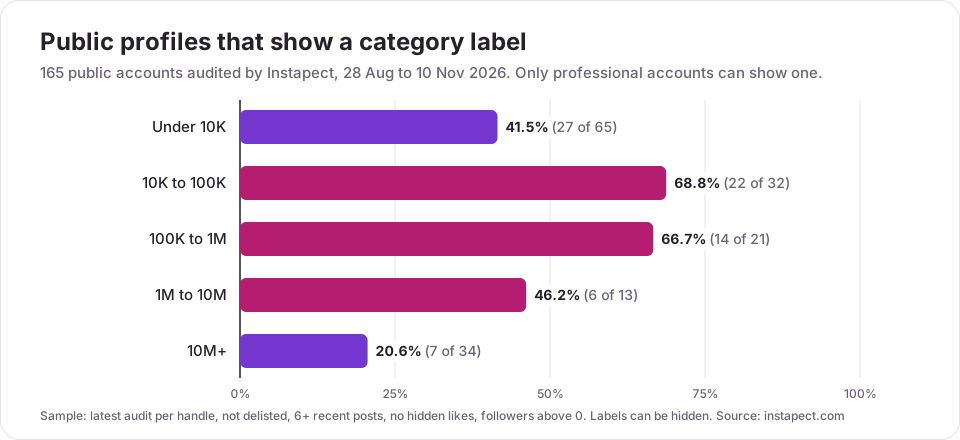
| Follower tier | Profiles | Show a category label | Share |
|---|---|---|---|
| Under 10K | 65 | 27 | 41.5% |
| 10K to 100K | 32 | 22 | 68.8% |
| 100K to 1M | 21 | 14 | 66.7% |
| 1M to 10M | 13 | 6 | 46.2% |
| 10M+ | 34 | 7 | 20.6% |
| All | 165 | 76 | 46.1% |
The most common labels were Digital creator (9 accounts), Entrepreneur (5), Reel creator (5), Athlete, Blogger and Community (4 each). Other public signals split like this:
| Signal (accounts under 1M followers) | Shows a category label (63) | No label (55) |
|---|---|---|
| Median engagement rate per post (likes + comments ÷ followers) | 0.67% | 2.18% |
| Median posts per week | 2.87 | 2.25 |
What this tells you if you are thinking about switching:
- Mid-size accounts lean professional. About two in three public profiles between 10K and 1M followers show a label, the tier where brand deals and Contact buttons matter most. Below 10K, fewer than half do.
- The biggest accounts often hide the label. Only 7 of 34 accounts above 10M followers show one, even though almost all of them are run as professional accounts. So a missing label does not prove an account is personal; the switch is only visible to you in settings.
- A label does not raise engagement. Labelled accounts under 1M posted more often (2.87 vs 2.25 posts a week) but had a lower median engagement rate (0.67% vs 2.18%). Small personal accounts followed mostly by friends tend to have high rates, so the gap reflects who is in each group, not the account type. Switching to personal won't cost you reach by itself, and switching to professional won't add any.
Method and limits. Sample: latest audit per handle in Instapect's audit cache, not delisted, at least six recent posts, no hidden like counts, followers above zero, public accounts only; 165 accounts with 1,912 recent posts, audited 28 August to 10 November 2026, queried 20 November 2026. "Category label" means the profile returned a non-empty category. The data source does not reliably return the account type itself (only 1 of 165 came back flagged as business), so the label is used as a visible floor for professional accounts, not a count of them. These are accounts people chose to audit, weighted toward large brands and small creators. Engagement figures are medians of each account's median post rate and are not adjusted for follower count within the group.
To see what a public profile shows from the outside, including its category label and bio link, run the handle through the Instagram profile analyzer.
Switching between creator and business instead
If your goal is a different label or toolset rather than a personal account, you don't need to go personal first. Instagram lets you "change your professional account type anytime" (About professional accounts):
- Go to Menu > Account type and tools > Account type.
- Tap Switch account type.
- Pick Switch to business account or Switch to creator account.
Creator accounts suit public figures, artists and influencers; business accounts suit retailers, local businesses, brands and service providers. Our guide on becoming an Instagram content creator covers when the creator tools pay off.
How to check that the switch worked
- Open your profile. The category label under your name and the Contact button should be gone.
- Open Menu > Account type and tools. The menu should now offer a way to switch to a professional account rather than to personal.
- Open Menu > Account privacy. The Private account toggle should now be available. Turn it on only if you want approval-only followers.
- Check from outside. Open your profile in a logged-out browser window or ask a friend. They should see no label and no Contact button.
If the label is still there after a minute, close and reopen the app. Profile changes can take a moment to show on other devices.
Why can't I switch to a personal account?
| What you see | Likely cause | Fix |
|---|---|---|
| No Account type and tools item | Older app version or a moved menu | Update Instagram, then search "account type" in Settings |
| The option is greyed out or errors | A temporary glitch or connection problem | Log out and back in, or try on instagram.com |
| It switches, then the label returns | You are looking at a cached profile | Force-close the app and reload the profile |
| The account is managed by a team | Another admin or a linked business tool controls the account | Ask the owner of the business account to make the change |
| Still stuck | Account-specific issue | Use the "I can't switch account type" section of the Help Center article or the Meta AI support assistant linked there |
Common mistakes when switching to a personal account
- Switching to get privacy, then forgetting the toggle. A personal account is still public until you turn on Private account.
- Losing contact routes. The Contact button disappears. Add an email to your bio if clients or brands still need to reach you.
- Leaving promotions running. Ads Manager access goes with the switch. Stop or finish campaigns first.
- Expecting a reach boost or penalty. Instagram does not say account type changes how posts are distributed, and the audit data above shows no engagement advantage for labelled accounts.
- Assuming the label tells you someone's account type. Professional accounts can hide the label, so you can't confirm another account's type from its profile.
Frequently asked questions
How do I switch my Instagram back to a personal account?
Go to your profile, tap Menu, then Account type and tools > Account type > Switch account type > Switch to personal account, and confirm with Switch to personal. The same steps work for business and creator accounts.
What happens if I switch my Instagram from business to personal?
Your posts, followers and messages stay. You lose access to Meta Business Suite and Meta Ads Manager, and the Contact button and category label disappear from your profile. You can then make the account private.
Will I lose my followers if I switch to a personal account?
No. Changing account type does not remove followers, posts, Reels or Highlights. Followers are only removed if you remove them yourself or, after going private, block them.
Do I lose Insights when I switch to a personal account?
Not entirely. Instagram says a public personal account still has access to its dashboard and insights. If you also make the account private, save any numbers you want to keep before you switch.
Can I switch back to a professional account later?
Yes. Instagram lets you change account type at any time from Menu > Account type and tools. You pick creator or business again and set your category and contact details during setup.
Is a creator account the same as a personal account?
No. A creator account is a professional account built for public figures and influencers. It has a dashboard, a Contact button, a category label and access to Meta's ad tools, and it cannot be private. A personal account has none of those business tools but can be private.
Why is "Switch to personal account" missing from my settings?
Usually the app is out of date or the menu has moved. Update Instagram, then type "account type" into the settings search. If you still can't see it, try the switch on instagram.com or ask the admin who manages the account.
I switched to personal but people still see my category label. What went wrong?
They are probably seeing a cached version of your profile. Force-close the app and reload, or check in a logged-out browser window. If the label is gone there, the switch worked.
Can I switch to a personal account on a computer?
Yes. On instagram.com, click More > Settings, open Account type and tools and click Switch to personal account, then Switch back. The change applies in the app too.
Do I need to switch to personal to make my Instagram private?
Yes. Professional accounts can't be set to private. Switch to personal first, then turn on Private account in Account privacy.
Does switching to a personal account affect reach or the algorithm?
Instagram does not say account type changes distribution. In Instapect's audit data, labelled accounts under 1M followers did not have higher median engagement than unlabelled ones, so the account type is not a lever for reach.
Make the switch, then tidy your profile
Do the six taps, then check your profile from a logged-out window to confirm the label and Contact button are gone. If privacy was the reason, turn on Private account next and read what still stays visible in our guide to making Instagram private.
Sources
- Instagram Help Center, "How to switch an Instagram professional account to personal," help.instagram.com/1717693135113805, retrieved 20 Nov 2026.
- Instagram Help Center, "About professional accounts on Instagram," help.instagram.com/138925576505882, retrieved 20 Nov 2026.
- Instapect audit cache, 165 public accounts, 1,912 recent posts, audited 28 Aug to 10 Nov 2026, queried 20 Nov 2026.